Why Your Screen Flickers – Causes, Fixes, and How to Stop It
Screen flickering is one of the most annoying display issues you can experience. It can happen randomly, constantly, or only in certain situations — making it difficult to diagnose.
Sometimes it’s a simple settings problem. Other times, it can indicate deeper hardware or connection issues.
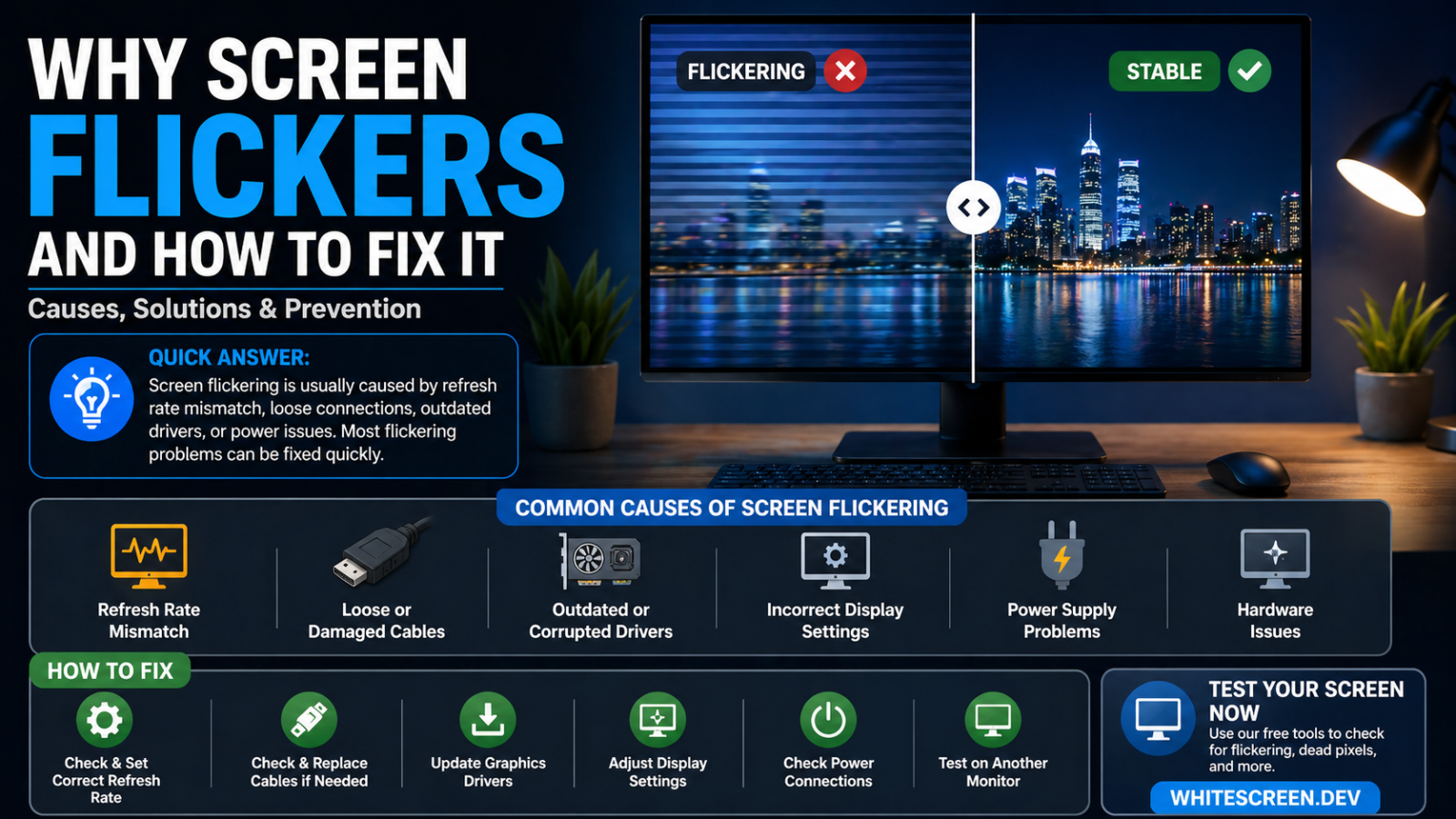
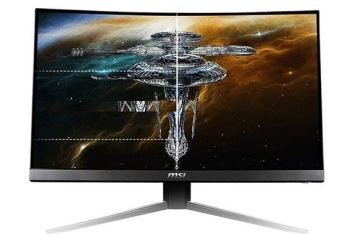
Screen flickering can be caused by refresh rate issues, cables, or display settings.
Quick Answer: Why Does Your Screen Flicker?
Screen flickering is usually caused by:
- Incorrect refresh rate
- Loose or damaged cables
- Outdated graphics drivers
- Display settings conflicts
- Hardware or power issues
The solution depends on identifying the exact cause.
1. Incorrect Refresh Rate (Most Common Cause)
If your screen refresh rate does not match your monitor’s capability, flickering can occur.
- Screen flashes periodically
- Display feels unstable
Fix:
- Set refresh rate to recommended value (60Hz, 120Hz, etc.)
2. Loose or Faulty Cable
A poor connection between your device and display can cause signal interruptions.
- Flickering when moving cable
- Random screen flashes
Fix:
- Reconnect cable securely
- Replace with higher quality cable
3. Outdated or Corrupted Graphics Drivers
Drivers control how your system communicates with the display.
If they are outdated or corrupted:
- Screen may flicker under load
- Issues appear after updates
Fix:
- Update or reinstall graphics drivers
4. Brightness and Power Fluctuation
Some screens flicker due to unstable brightness or power supply issues.
- Flicker when brightness changes
- More noticeable in dark environments
5. Panel or Hardware Issues
If all settings are correct, the issue may come from the display panel itself.
- Constant flicker regardless of settings
- Appears across all inputs
Step-by-Step: Fix Screen Flickering
- Check and adjust refresh rate
- Reconnect or replace cables
- Update graphics drivers
- Adjust brightness settings
- Test on another monitor
Use Color Screens to Detect Flickering
Fullscreen colors help you see flickering clearly:
- White → general flicker visibility
- Black → brightness instability
- Solid colors → signal issues
Test here:
Advanced Tip: Test for Related Issues
Sometimes flickering is linked to other display problems:
Common Mistakes
- Ignoring refresh rate settings
- Using old or cheap cables
- Skipping driver updates
- Assuming hardware failure too early
When Should You Be Concerned?
Check further if:
- Flickering continues after fixes
- Occurs on multiple devices
- Gets worse over time
Related Guides
Frequently Asked Questions
Is screen flickering dangerous?
Not usually, but it can cause eye strain and discomfort.
Can flickering damage my screen?
It depends on the cause. Power issues may lead to damage.
Does refresh rate fix flickering?
Yes, in many cases it solves the issue.
Can cables cause flickering?
Yes, poor or loose cables are a common cause.