Best Screen Settings for Night – Reduce Eye Strain in Low Light
Using screens at night feels completely different from using them during the day. The same brightness and color settings that look fine in daylight can become harsh and uncomfortable in a dark room.
If your eyes feel strained, dry, or sensitive at night, the issue is not just screen time — it's how your screen is configured.
Night screen settings should reduce brightness and shift toward warmer tones for comfort.
Quick Answer: Best Night Screen Settings
For comfortable night use:
- Lower brightness significantly
- Use warm color temperature
- Enable blue light filter
- Avoid pure white backgrounds
These changes reduce strain immediately.
Why Screens Feel Worse at Night
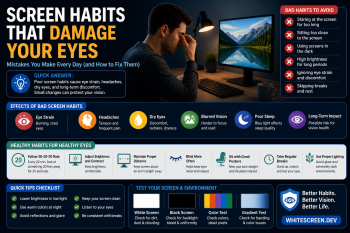
At night, your environment is darker, but your screen remains bright. This creates a strong contrast that forces your eyes to constantly adjust.
Main issues include:
- Brightness mismatch with surroundings
- High contrast between screen and room
- Blue light exposure
1. Lower Brightness (Most Important)
Brightness should match your environment. At night, high brightness is one of the biggest causes of discomfort.
- Too bright → eye fatigue
- Too dark → loss of clarity
Adjust until it feels natural, not intense.
2. Use Warm Color Temperature
Cool (blue-toned) screens are harsh at night. Warmer tones are softer and easier to process.
- Day: neutral colors
- Night: warm yellow/orange tones
For more detail:
3. Enable Blue Light Filter
Blue light is more stimulating and harder for your eyes to handle in low light conditions.
Most devices have built-in night mode or blue light filters.
4. Avoid Pure White Screens
Bright white screens create the highest contrast in dark environments.
If you need to use a white screen, reduce brightness:
5. Adjust Contrast and Color Balance
High contrast settings can make text sharp but uncomfortable at night.
Balance is key:
- Lower contrast slightly
- Use softer tones
6. Use Ambient Lighting
Using a screen in complete darkness increases eye strain.
- Add soft background light
- Avoid direct glare
This reduces contrast stress on your eyes.
Advanced Tip: Combine Settings for Best Result
Best night setup:
- Low brightness
- Warm color temperature
- Blue light filter ON
- Soft ambient light
Common Mistakes
- Using daytime settings at night
- Keeping brightness too high
- Ignoring environment lighting
- Using pure white screens in dark rooms
When to Change Night Settings
- After sunset
- In low-light environments
- When eyes feel strained
Check If the Problem Is Your Screen
Sometimes discomfort is caused by display issues:
Related Guides
Frequently Asked Questions
Is dark mode better at night?
Yes, but it depends on contrast and brightness settings.
Should I reduce brightness to minimum?
No, it should be comfortable, not too dim.
Does blue light filter really help?
Yes, especially during long nighttime use.
Can night settings improve sleep?
Reducing blue light may help your body relax before sleep.