Black Screen of Death – Causes, Fixes, and How to Recover Your Display
The Black Screen of Death is one of the most frustrating problems you can face. Your computer turns on, you may hear fans or see lights, but the screen stays completely black.
This issue is more serious than a simple display glitch. It often indicates a system failure, driver problem, or hardware issue that prevents your screen from showing anything at all.

A black screen after boot usually indicates a system or display initialization failure.
What Is the Black Screen of Death?
The Black Screen of Death happens when your system fails to display any visual output, even though the device is powered on.
Unlike minor issues like flickering or blurry screens, this problem often blocks you from accessing your system entirely.
Black Screen vs Blue Screen vs No Signal
It’s important to understand the difference before trying to fix the issue.
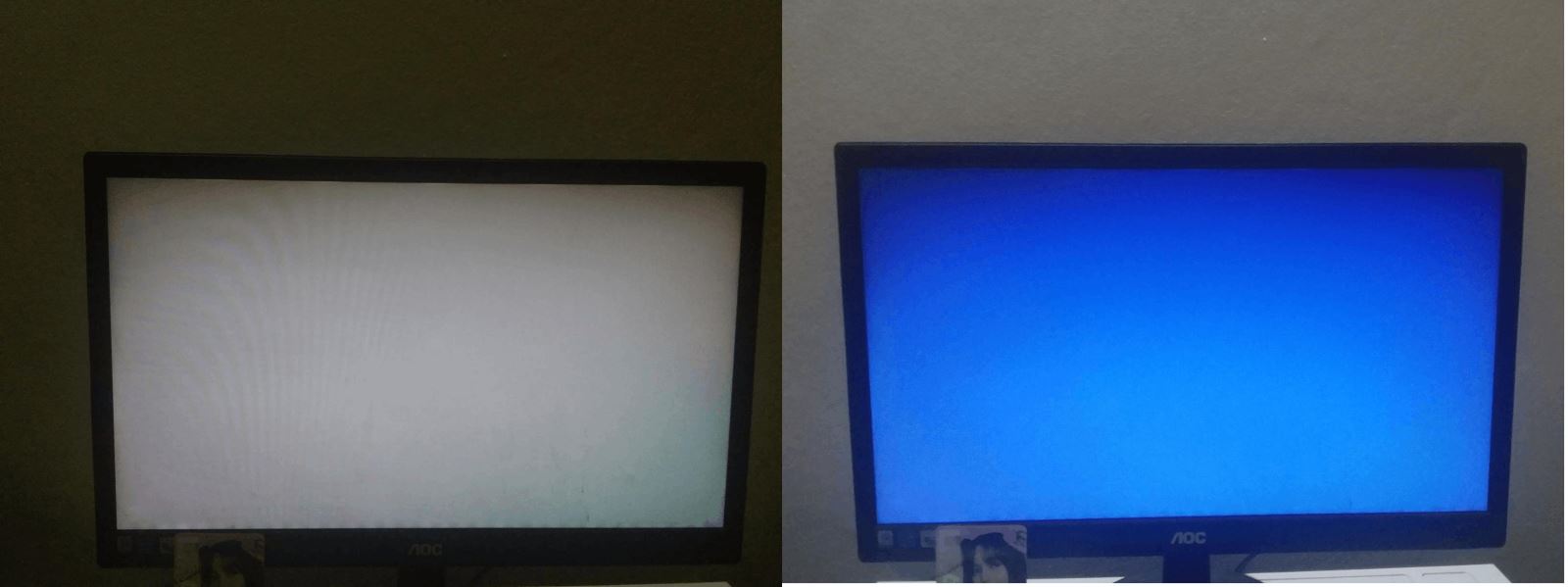
Black screen, blue screen, and “No Signal” are different issues that require different solutions.
- Black Screen: System is on, but nothing is displayed
- Blue Screen: System crashed with an error message
- No Signal: Monitor is not receiving input
Fixing the wrong problem can waste a lot of time, so identifying this correctly is critical.
Common Causes of the Black Screen of Death
1. Graphics Driver Failure
A corrupted or outdated graphics driver can prevent the system from displaying output.
2. System Boot Error
If your operating system fails during startup, the screen may remain black.
3. Hardware Issues
Faulty RAM, GPU, or motherboard problems can cause a complete black screen.
4. Loose or Faulty Connections
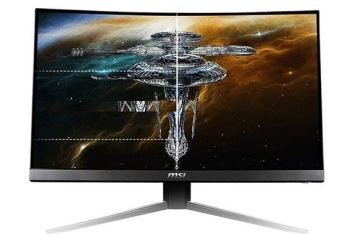
External monitors may show a black screen due to cable or port issues.
5. Display Not Initialized
Sometimes the system runs, but the display never initializes properly.
Step-by-Step Fixes That Actually Work
Step 1: Restart Your Device
Hold the power button to shut down completely, then restart.
Step 2: Check Cables and Connections
Reconnect HDMI, DisplayPort, or power cables carefully.
Step 3: Try Another Monitor
This helps determine whether the issue is with the screen or the system.
Step 4: Boot Into Safe Mode
Safe Mode allows you to start the system with minimal drivers.
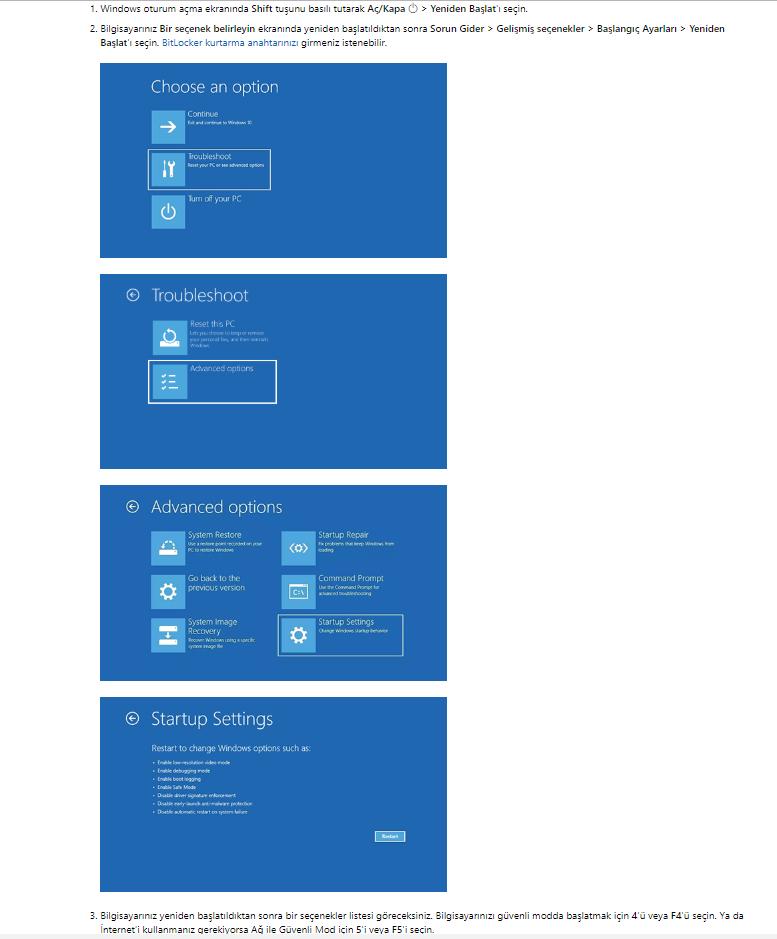
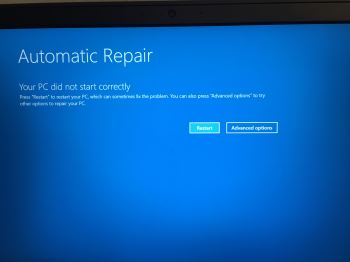
Booting into Safe Mode or Recovery can help diagnose and fix black screen issues.
Step 5: Update or Reinstall Graphics Drivers
Once in Safe Mode, update or reinstall your graphics drivers.
Step 6: Check Hardware Components
If nothing works, check RAM, GPU, or internal connections.
How to Test If Your Screen Still Works
After applying fixes, you should verify whether your display is functioning correctly.
After fixing a black screen of death, a fullscreen white screen can confirm your display is working properly.
A fullscreen white screen is one of the simplest ways to test your display. If it shows correctly, your screen is likely fine and the issue was system-related.
When the Problem Is Serious
You may need professional repair if:
- The screen remains black after all fixes
- You cannot access Safe Mode or BIOS
- The issue occurs on multiple displays
Common Mistakes to Avoid
- Assuming the screen is broken without testing
- Ignoring driver issues
- Skipping Safe Mode diagnostics
Frequently Asked Questions
Can the Black Screen of Death fix itself?
Sometimes, but most cases require troubleshooting.
Is it a hardware or software issue?
It can be either, which is why testing is important.
Can I recover my data?
Yes, in most cases your data is still safe.
What is the fastest way to test my screen?
Using a fullscreen white screen is a quick way to check if your display works.