Why Is My Screen Black – Causes and Fixes That Actually Work
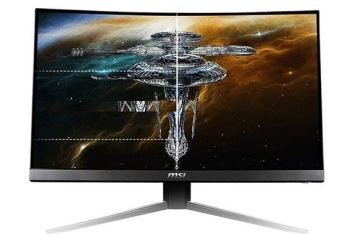
Seeing a black screen can be frustrating, especially when your device seems to be running normally. The keyboard lights are on, the fans are spinning, but the display shows nothing.
This issue can come from multiple causes, ranging from simple connection problems to deeper system errors. The key is understanding what type of black screen you are dealing with.
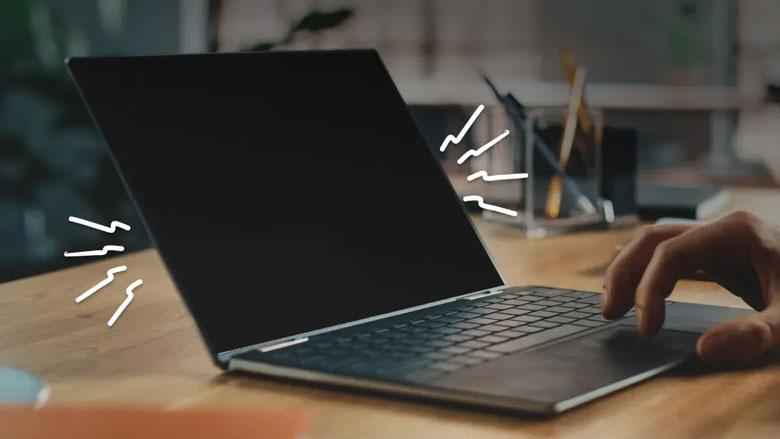
A device can be powered on while the screen remains completely black, indicating a display-related issue.
Quick Answer: Why Is My Screen Black?
A black screen usually happens because:
- The display is not receiving a signal
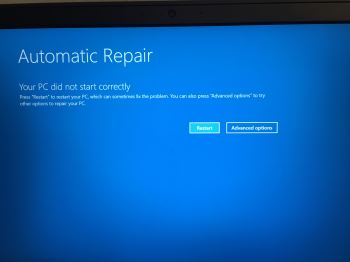
- The system failed to load properly
- The screen itself is not working
- There is a hardware or connection issue
The exact solution depends on identifying which of these situations you are facing.
Black Screen vs No Signal – Important Difference
Many users confuse a true black screen with a “No Signal” error, but they are completely different problems.

A black screen and a “No Signal” message indicate two completely different issues that require different solutions.
- Black Screen: The display is on, but nothing is shown
- No Signal: The monitor is not receiving input from the device
Understanding this difference will save you time when troubleshooting.
Common Causes of a Black Screen
1. Loose or Faulty Cable
If your monitor is connected externally, a loose HDMI or DisplayPort cable can cause a black screen.
2. Display Not Detected
Your system might be running, but the display is not properly recognized.
3. System Boot Failure
If the operating system fails to load, your screen may remain black.
4. Graphics Driver Issues
Corrupted or outdated drivers can prevent the display from working correctly.
5. Hardware Problems
In some cases, the issue may come from the screen panel or internal components.
Step-by-Step Fixes
- Restart your device completely
- Check and reconnect all display cables
- Try connecting to another monitor
- Update or reinstall graphics drivers
- Boot into safe mode (if possible)
Use a Screen Test to Identify the Issue
A simple way to check whether your display is working is to use a fullscreen color test.

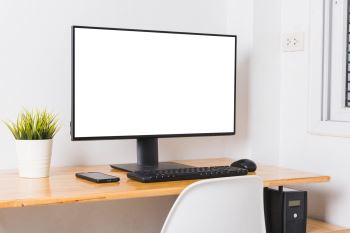
Using a fullscreen white screen helps confirm whether your display is functioning correctly.
If your screen can display a white screen properly, the issue is likely related to your system rather than the display itself.
When Should You Be Concerned?
You should take the issue more seriously if:
- The screen stays black after multiple restarts
- You cannot access BIOS or boot options
- The problem appears across different devices
Related Issues
Common Mistakes
- Assuming the screen is broken immediately
- Ignoring cable and connection issues
- Not testing with another display
Frequently Asked Questions
Why is my screen black but the computer is on?
This usually means the display is not receiving or showing output correctly.
Can a black screen fix itself?
Sometimes, but most cases require basic troubleshooting.
Is a black screen a serious issue?
It depends on the cause. Some are simple fixes, while others require deeper repair.
How do I test if my screen works?
You can use a fullscreen color test to check if your display is functioning properly.