Blue Screen of Death – What It Means and How to Fix It Step by Step
The Blue Screen of Death (BSOD) is one of the most recognizable system errors. When it appears, your computer suddenly crashes and displays a blue screen with an error message.
Unlike a black screen, a blue screen gives you information. But for most users, that information is confusing and difficult to act on.
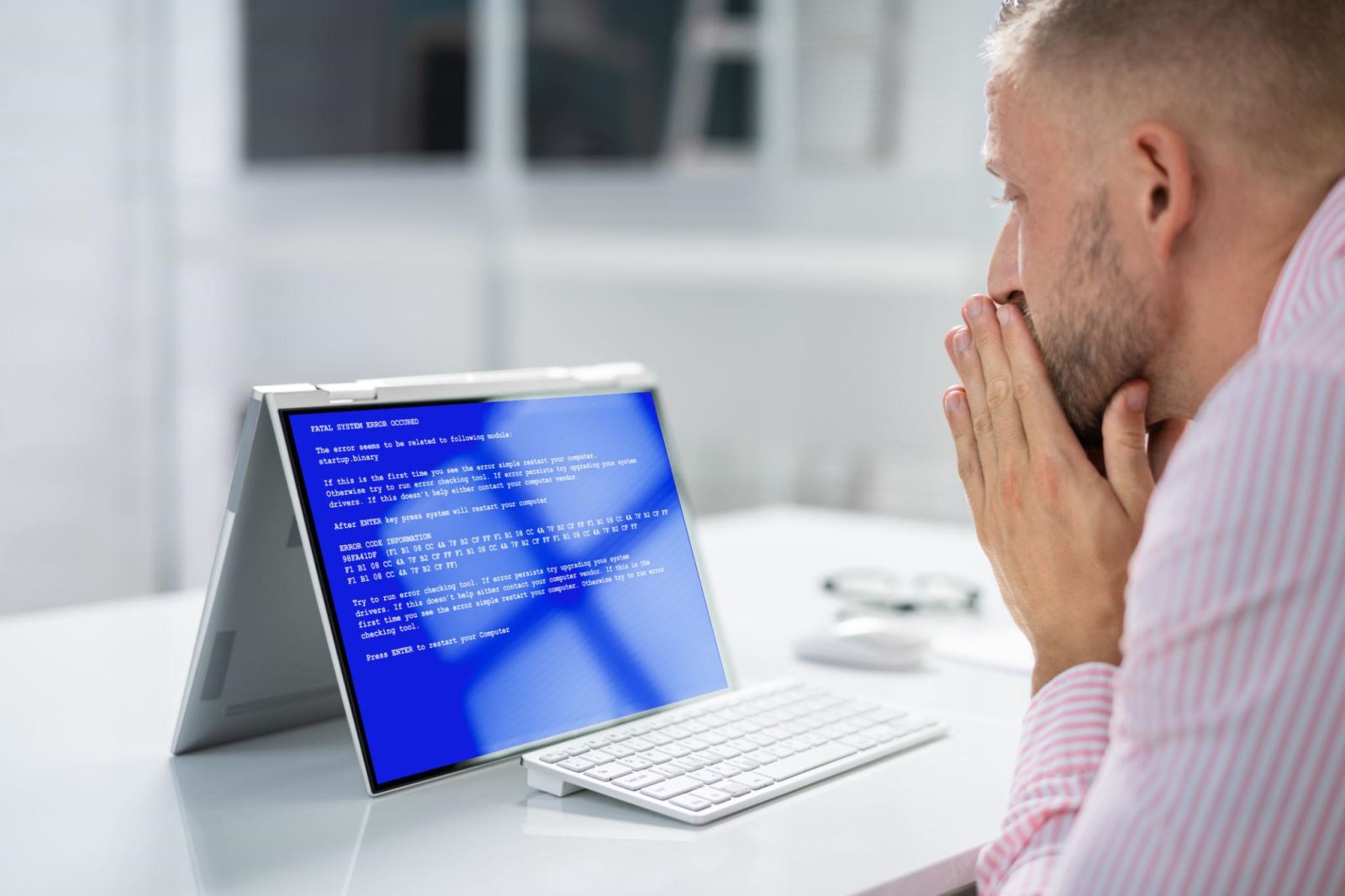
A blue screen of death usually appears when the system crashes and shows an error code.
What Is the Blue Screen of Death?
The Blue Screen of Death happens when Windows encounters a critical error that it cannot recover from. To prevent damage, the system stops completely and displays a blue error screen.
This screen often includes a stop code, which can help identify the cause of the problem.
Blue Screen vs Black Screen vs No Signal
Before trying to fix the issue, it's important to understand what you're actually dealing with.
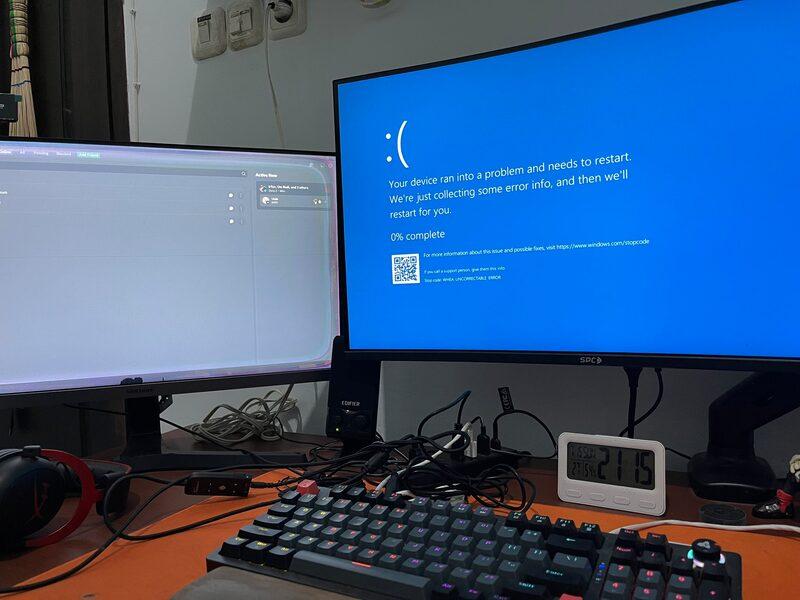
Blue screen, black screen, and no signal indicate different problems and require different solutions.
- Blue Screen: System crash with error message
- Black Screen: No visual output
- No Signal: Monitor not receiving input
Each of these requires a completely different troubleshooting approach.
Common Causes of a Blue Screen
1. Driver Conflicts
Outdated or corrupted drivers are one of the most common reasons for BSOD errors.
2. Hardware Problems
Faulty RAM, GPU, or storage devices can trigger system crashes.
3. Software Conflicts
Newly installed programs or updates may conflict with system components.
4. Overheating
High temperatures can cause the system to shut down to prevent damage.
5. Corrupted System Files
Important system files may be damaged, leading to critical errors.
Step-by-Step Fixes
Step 1: Restart Your Computer
Sometimes, a simple restart can resolve temporary issues.
Step 2: Note the Error Code
The stop code on the blue screen can help identify the exact problem.
Step 3: Boot into Safe Mode
Safe Mode allows your system to run with minimal drivers.
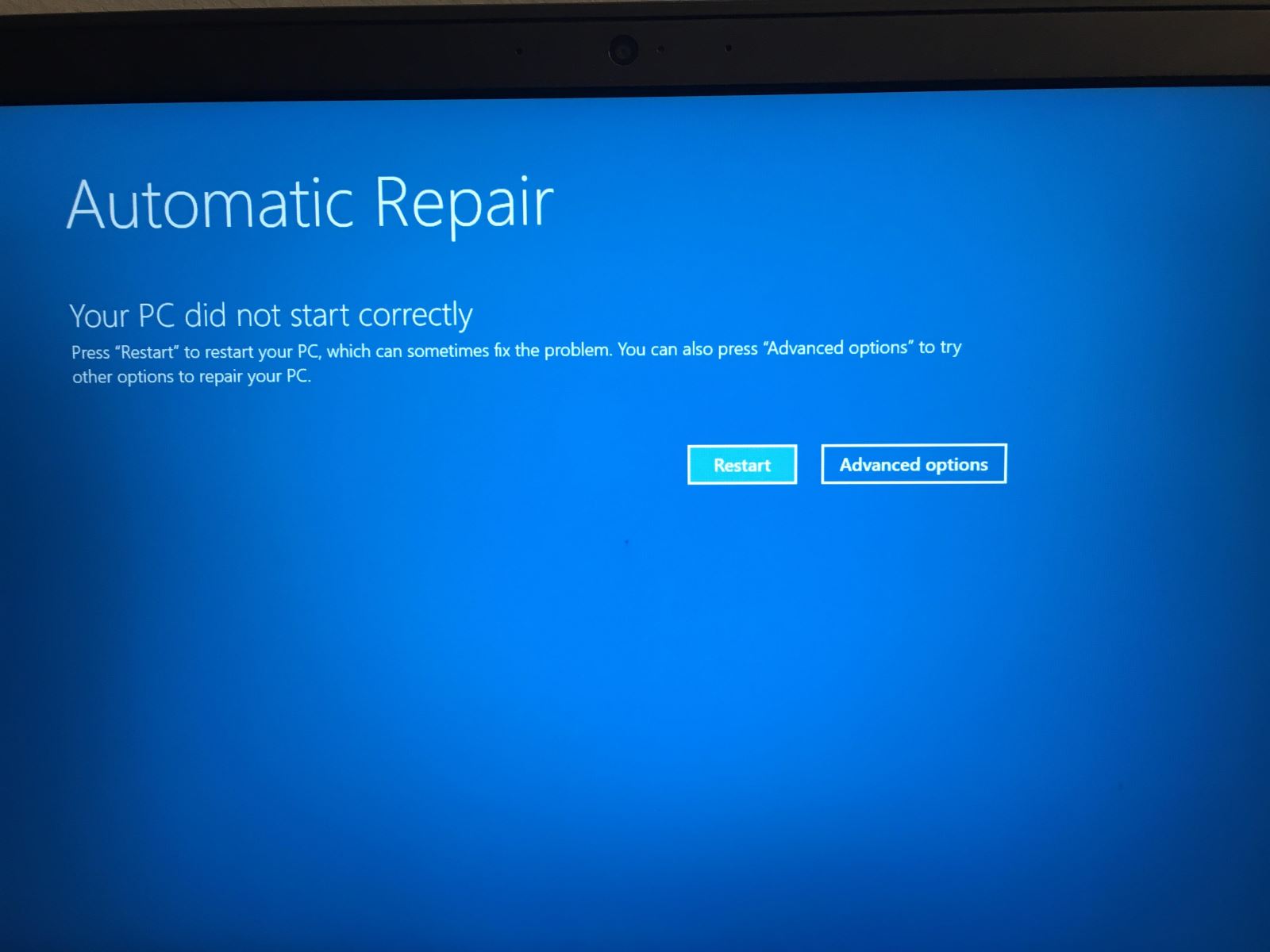
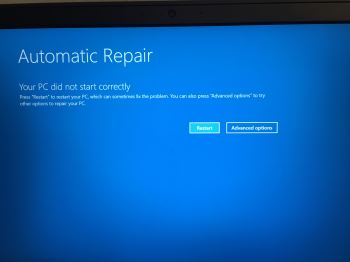
After a blue screen crash, the system may attempt automatic repair during restart.
Step 4: Update Drivers
Update your graphics, chipset, and system drivers.
Step 5: Uninstall Recent Software
If the issue started after installing something new, remove it.
Step 6: Check Hardware
Run memory tests and inspect hardware connections.
How to Check If Your Screen Is Still Working
After fixing the system, you need to verify that your display is functioning correctly.

After fixing a blue screen error, a fullscreen white screen helps confirm your display is working correctly.
A fullscreen white screen is a simple way to test your display. If it shows properly, your screen is working and the problem was system-related.
When You Should Be Concerned
- The blue screen appears repeatedly
- You cannot boot into Safe Mode
- The system crashes immediately after startup
Common Mistakes
- Ignoring the error code
- Updating drivers incorrectly
- Assuming it's a hardware issue too quickly
Frequently Asked Questions
Is the blue screen of death serious?
It can be, but many cases are fixable with basic troubleshooting.
Can I fix BSOD without losing data?
Yes, most fixes do not affect your data.
Why does my computer keep getting blue screens?
This usually indicates a deeper issue such as driver conflicts or hardware failure.
How do I test my display after a crash?
You can use a fullscreen white screen to confirm your display is working.