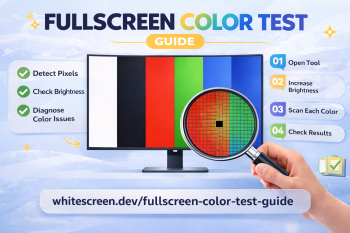
Fullscreen Color Test Guide – Check Your Screen the Right Way
Most people don’t realize their screen has issues until something feels off — a strange dot, uneven brightness, or colors that don’t look right. The problem is, these defects are often invisible during normal use.
A fullscreen color test is the simplest and most effective way to detect hidden screen problems. In this guide, you’ll learn how to use color screens properly to check your display like a professional.
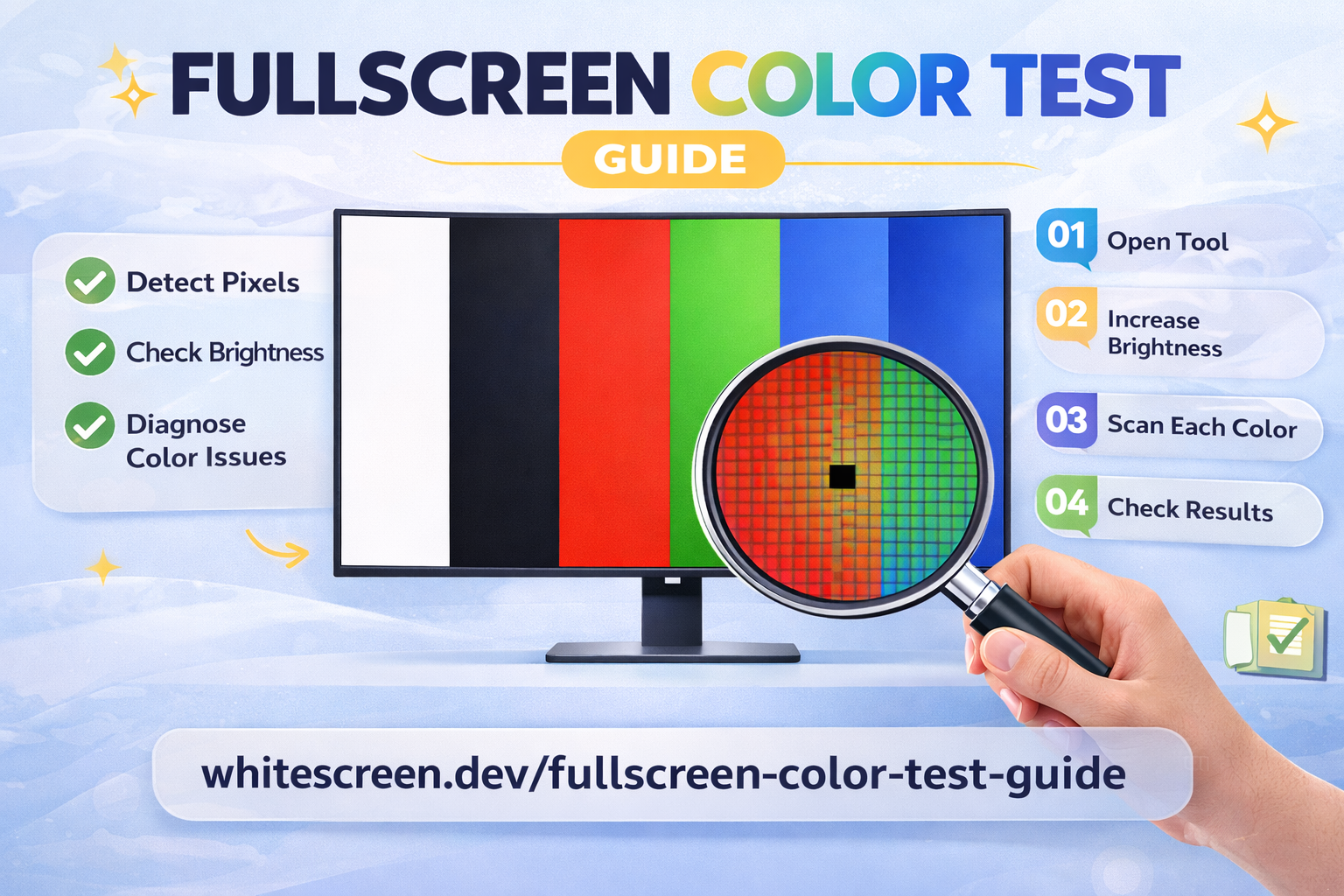
Fullscreen color testing helps reveal hidden screen defects that are not visible during normal use.
Quick Answer: What Is a Fullscreen Color Test?
A fullscreen color test displays solid colors across your entire screen to help detect issues such as dead pixels, stuck pixels, brightness inconsistency, and color distortion.
The most important colors to use are white, black, red, green, and blue.
Why Fullscreen Testing Works Better Than Normal Usage
During everyday use, your screen shows mixed content — text, images, and videos. These make it difficult to spot small defects.
Fullscreen color testing removes distractions and allows you to:
- Focus on pixel-level issues
- Detect brightness inconsistencies
- Identify color imbalance
Step-by-Step: How to Run a Fullscreen Color Test
- Open a fullscreen color tool.
- Set brightness between 80–100%.
- Move to a dim or controlled lighting environment.
- Display one solid color at a time.
- Scan your screen slowly from edge to edge.
- Repeat with all test colors.
Start your test here:
What Problems Can You Detect?
Dead Pixels
Dead pixels appear as black dots that never change. Learn the full process here:
Stuck Pixels
Stuck pixels remain on a single color and are best seen on black or contrasting backgrounds.
Brightness Issues
Uneven brightness can appear as patches or shadows on white or gray screens.
Color Inconsistency
Some areas may display slightly different tones, especially noticeable on solid backgrounds.
Best Color Sequence for Accurate Testing
Follow this order for best results:
- White – detect dead pixels
- Black – detect bright/stuck pixels
- Red – test red subpixels
- Green – test green sensitivity
- Blue – test color balance
For a deeper breakdown, read:
Best Colors for Dead Pixel Testing
Advanced Testing Tips
- Move your eyes slowly instead of staring at one point
- Check from different viewing angles
- Repeat tests under different brightness levels
- Use a clean screen before testing
Common Mistakes
- Testing too quickly
- Skipping color variations
- Testing under bright light
- Ignoring subtle inconsistencies
When Should You Perform a Color Test?
- After buying a new monitor or laptop
- When you notice visual anomalies
- Before warranty expires
Frequently Asked Questions
Is fullscreen color testing safe?
Yes, it does not damage your screen and is commonly used for diagnostics.
How often should I test my screen?
Only when needed or when you suspect an issue.
Can this fix screen problems?
No, this method is for detection only.
Does this work on phones?
Yes, fullscreen color testing works on any display device.