How to Test Dead Pixels Using Fullscreen Color Screens
You turn on your screen and notice a tiny dot that doesn’t behave like the rest. It might stay black, glow brighter than surrounding pixels, or remain stuck on a single color. At this point, the biggest question is whether this is just dust or a real dead pixel.
This guide walks you through a reliable, step-by-step method to test dead pixels using fullscreen color screens. It works for monitors, laptops, and even mobile devices.
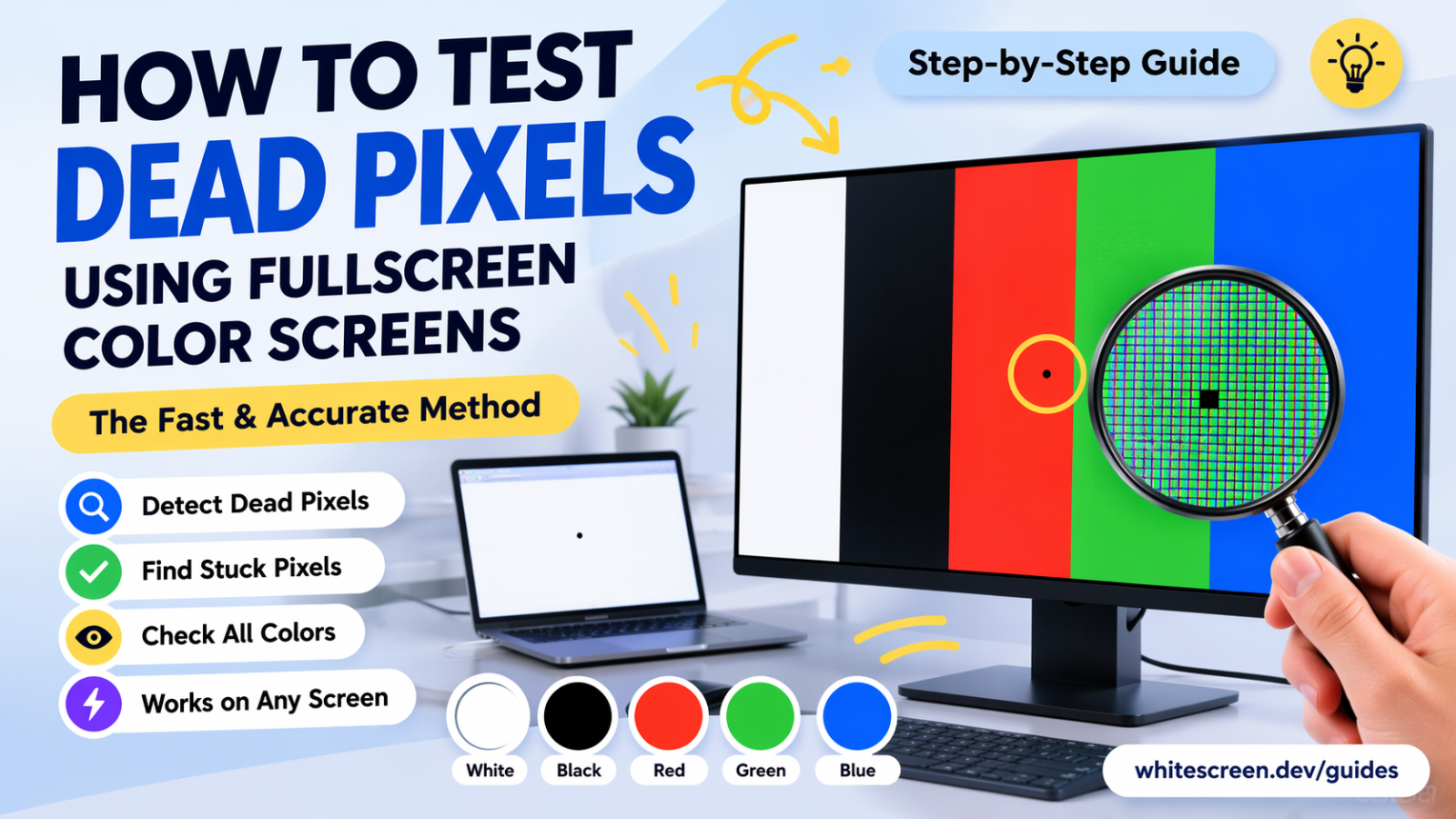
Using fullscreen color screens is the most effective way to detect dead or stuck pixels.
Quick Answer: The Fastest Way to Test Dead Pixels
The most effective method is to display solid fullscreen colors — white, black, red, green, and blue — and carefully scan your screen. Each color reveals different types of pixel defects that are otherwise invisible.
Why Fullscreen Colors Work
Every pixel is made of three subpixels: red, green, and blue. When one of these fails, the pixel cannot display colors correctly.
- White screen: reveals dark or dead pixels
- Black screen: shows bright or stuck pixels
- RGB screens: isolate individual subpixel issues
Step-by-Step: How to Test Dead Pixels Properly
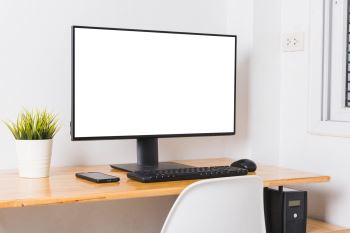
- Open a fullscreen color tool.
- Increase brightness to 80–100%.
- Move to a dim or dark room.
- Start with a white screen and scan slowly.
- Switch to black, then red, green, and blue screens.
- Repeat the scan for each color.
Use these tools:
How to Identify Different Pixel Problems
- Dead pixel: always black and unresponsive
- Stuck pixel: locked to one color
- Hot pixel: bright spot on dark backgrounds
If the spot disappears after cleaning, it’s dust — not a pixel issue.
Edge Cases That Can Mislead You
Some pixel defects are subtle and only visible under certain conditions:
- At specific viewing angles
- At maximum brightness
- On certain colors only
OLED and LCD panels behave differently, so testing multiple times improves accuracy.
Common Mistakes to Avoid
- Testing in bright environments
- Using only one color
- Scanning too quickly
- Confusing smudges with dead pixels
What to Do If You Find a Dead Pixel
Dead pixels are usually permanent. However, stuck pixels may sometimes be fixed using pixel-refresh tools. If your device is new, testing early helps ensure warranty replacement.
Frequently Asked Questions
How long should I test each color?
Test each color for at least 1–2 minutes.
Can dead pixels spread?
They usually remain isolated, but more defects may appear over time.
Should I test a new monitor?
Yes, testing early ensures you can replace defective units.
Is one dead pixel acceptable?
Some manufacturers allow a small number depending on policy.