Best Colors for Dead Pixel Test – Complete Fullscreen Guide
When testing for dead pixels, using the wrong screen color can easily cause you to miss defects. Some pixels only show problems under specific colors, which is why choosing the right testing colors is critical.
This guide explains exactly which colors you should use and why each one reveals different types of pixel issues.
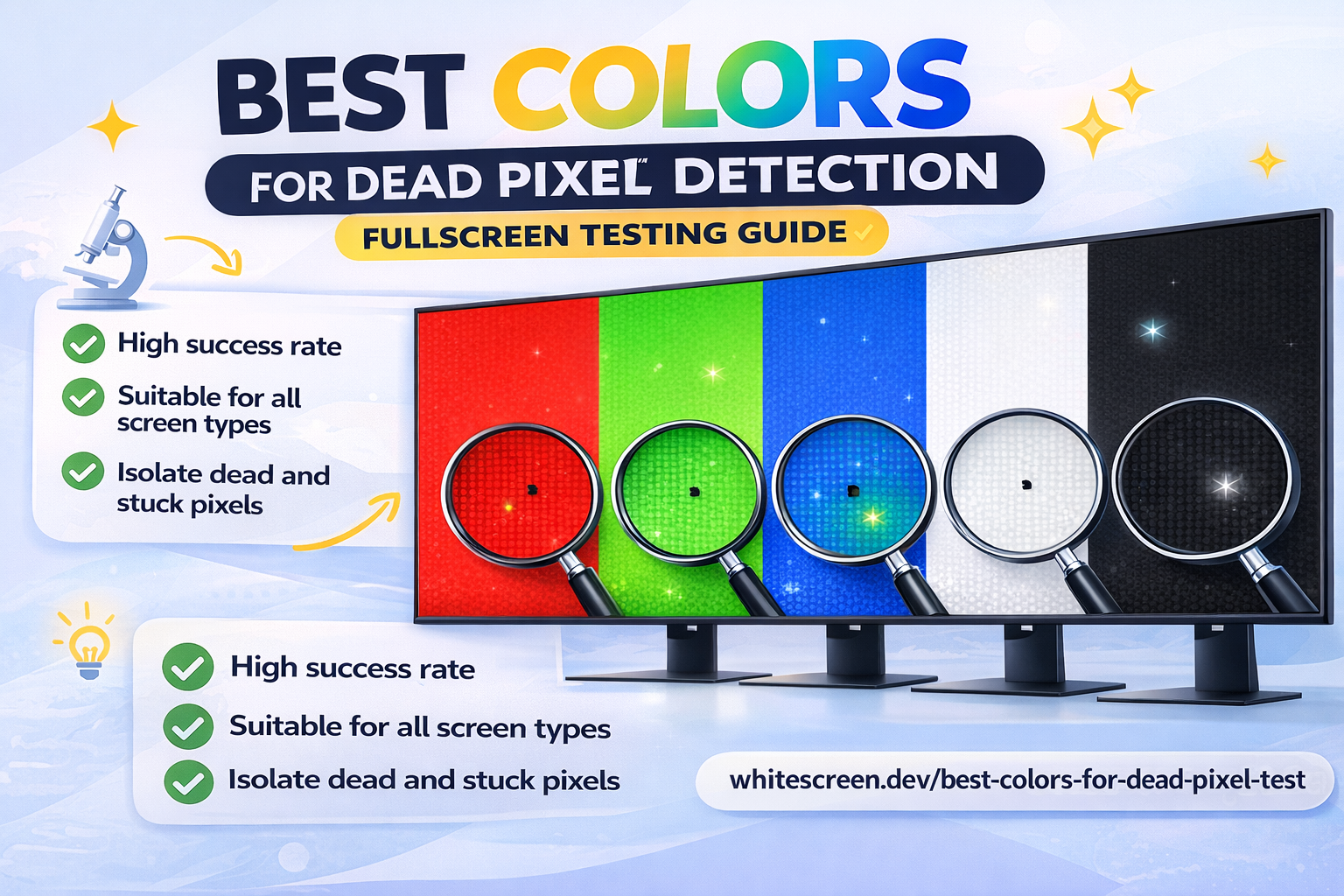
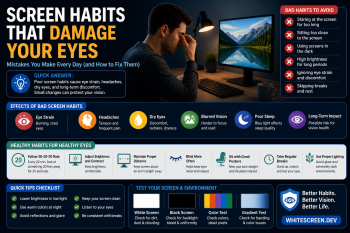
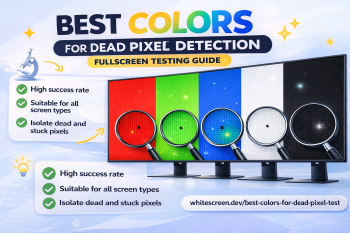
Different fullscreen colors reveal different types of pixel defects during testing.
Quick Answer: Which Colors Are Best?
The most effective colors for testing dead pixels are:
- White
- Black
- Red
- Green
- Blue
Each color plays a different role in detecting specific types of pixel issues.
Why You Need Multiple Colors
A pixel is made up of red, green, and blue subpixels. If one subpixel fails, the pixel may still appear partially functional. That’s why testing with just one color is not enough.
Using multiple fullscreen colors ensures that every subpixel is tested individually.
What Each Color Reveals
White Screen – Detect Dead Pixels
A white screen is the best way to identify completely dead pixels. These appear as black dots that never change.
Black Screen – Detect Stuck or Hot Pixels
On a black screen, stuck or hot pixels become highly visible as bright dots.
Red Screen – Check Red Subpixels
If a pixel fails to display red correctly, it will stand out on a red background.
Green Screen – Check Green Subpixels
Green is especially useful because the human eye is very sensitive to it, making defects easier to spot.
Blue Screen – Check Blue Subpixels
Blue helps detect subpixel imbalance and color distortion issues.
Best Testing Sequence (Recommended Method)
For the most accurate results, follow this order:
- Start with white
- Switch to black
- Test red
- Test green
- Test blue
This sequence ensures you detect both dead and stuck pixels efficiently.
Advanced Tip: Combine Color Testing with Movement
Slowly move your eyes across the screen instead of staring at one spot. Some defects are easier to detect in motion rather than static viewing.
Common Mistakes When Choosing Colors
- Using only white screen
- Skipping RGB colors
- Testing too quickly
- Testing in bright environments
When Color Testing Is Not Enough
If you're unsure about a result, combine this method with a full guide:
Read the complete dead pixel testing guide
This will help you confirm whether the issue is a real defect or something else like dust or screen reflection.
Frequently Asked Questions
Is white screen enough to test dead pixels?
No. White screen only reveals fully dead pixels. You need multiple colors to detect all issues.
Which color is best for stuck pixels?
Black screen is best because stuck pixels appear bright against it.
Do all screens behave the same?
No. OLED and LCD panels can show different behaviors when testing colors.
How often should I test?
Only when you notice issues or after buying a new device.