How to Check Screen Burn-In – Detect Ghosting and Image Retention
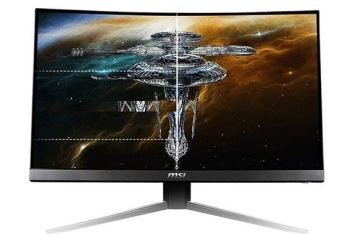
If you’ve ever noticed faint shadows or “ghost images” on your screen that don’t disappear, you may be dealing with screen burn-in or image retention. This issue is especially common on OLED displays but can also appear in other panel types under certain conditions.
This guide will show you how to accurately detect screen burn-in using fullscreen color tests, and how to distinguish it from temporary image retention.
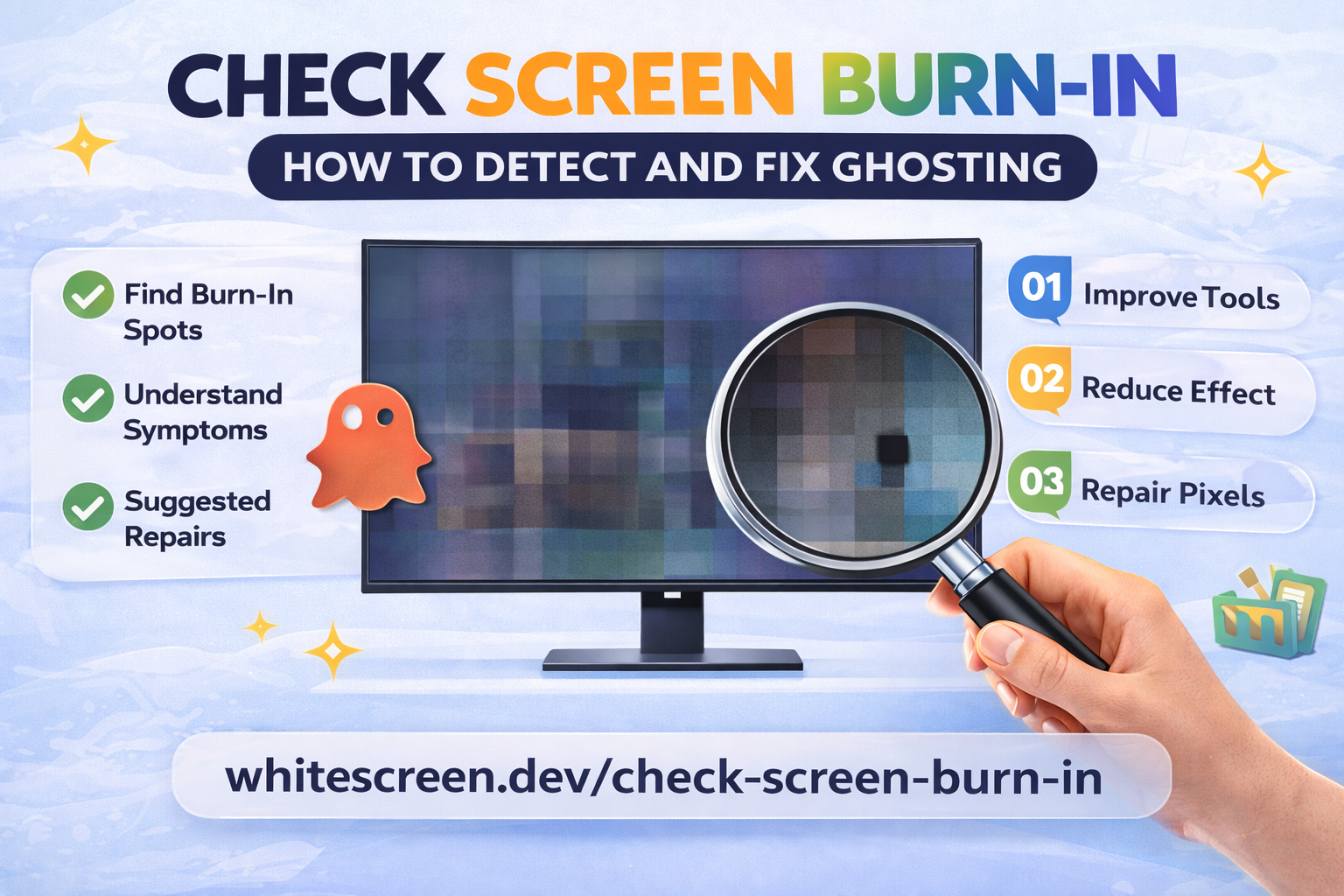
Fullscreen color testing helps reveal ghosting and burn-in effects that are invisible during normal use.
Quick Answer: What Is Screen Burn-In?
Screen burn-in is a permanent display issue where a static image leaves a visible “ghost” imprint on the screen. This usually happens when the same content is displayed for long periods.
Image retention, on the other hand, is temporary and may fade over time.
Why Burn-In Happens
Burn-in occurs when certain pixels degrade faster than others due to uneven usage. This is most noticeable on OLED screens, where each pixel emits its own light.
Common causes include:
- Static UI elements (taskbars, logos)
- Gaming HUDs
- Long video playback with fixed overlays
Step-by-Step: How to Check for Burn-In
- Open a fullscreen color screen.
- Set brightness to a normal or high level.
- Display a solid gray or white screen first.
- Look for faint outlines or shadow shapes.
- Switch to other colors (red, green, blue) to confirm.
Use these tools for testing:
Best Colors to Detect Burn-In
- Gray / white: best for seeing subtle ghost images
- Red / green: highlight uneven pixel aging
- Blue: shows color imbalance
For a deeper understanding of color testing, see:
Best Colors for Dead Pixel Testing
Burn-In vs Image Retention (Important Difference)
- Burn-in: permanent, does not disappear
- Image retention: temporary, fades after time or screen changes
If the image fades after a few minutes or after displaying moving content, it is likely not true burn-in.
Advanced Detection Tips
- Use dim lighting to enhance visibility
- Check from different viewing angles
- Test multiple times with different colors
- Focus on areas where static content appears frequently
Common Mistakes
- Confusing reflection with burn-in
- Testing only one color
- Testing too quickly
- Ignoring subtle patterns
Can Screen Burn-In Be Fixed?
True burn-in is usually permanent. However, mild image retention can sometimes be reduced by:
- Displaying moving content
- Using pixel refresh tools
- Reducing brightness over time
When Should You Check for Burn-In?
- After long gaming sessions
- When you see ghost images
- Before warranty expiration
Related Testing Guides
Frequently Asked Questions
Does burn-in happen on all screens?
No, it is most common on OLED displays.
Is burn-in permanent?
Yes, true burn-in cannot be reversed.
How long does image retention last?
It can fade within minutes or hours depending on severity.
Can I prevent burn-in?
Yes, by avoiding static images and lowering brightness.